Camera interface - live page
This shows the camera’s current video feed and presents various controls and alerts.
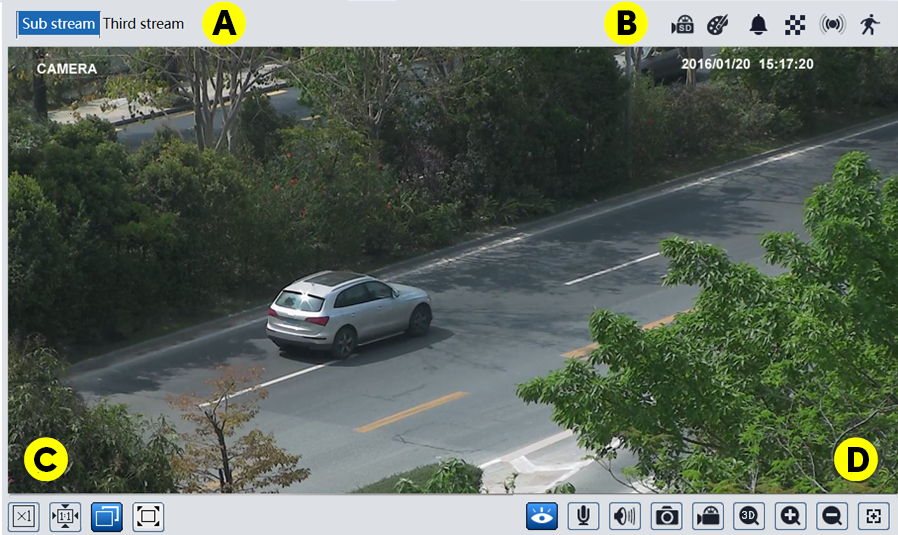
A) Feed selection buttons
At the top left of the image window, click to select which feed you want to view.
B) Image sizing buttons
The lower left controls adjust how the feed appears.
-
Original Size: Displays the feed at its native resolution.
-
Proper Size: Corrects the aspect ratio of the feed.
-
Adapt: Fills the image window with the feed (may cause distortion).
-
Full Screen: Fills your monitor with the feed. Double-click your mouse or press the Esc key to exit full-screen mode.
C) Control buttons
-
Live View: Suspend or resumes the live view.
-
Enable Audio: If the camera has a microphone enabled, this adds live audio to the surveillance feed.
-
Enable Audio: Adds the camera’s audio feed to the live view.
-
Snapshot: Captures the screen as a photo.
-
Local Recording: This toggle only appears when using IE with the surveillance plugin. It records the feed to the SD card regardless of schedule.
-
3D Zoom (PTZ only): This activates 3D Zoom. When activated, aiming the PTZ is greatly simplified. Double-click the video screen to center the PTZ on that point. Drag from left to right on the screen, and the camera centers on that area and zooms in. Click and drag right to left, and the PTZ centers on that area and zooms out. If you have Smart Tracking enabled, 3D Zoom does not prevent the camera from returning to its home position.
-
Zoom In: Digitally zooms in on the feed (click multiple times for greater zoom, though the image pixelates once you surpass its resolution). When zoomed in, click and drag the screen to pan around the image.
-
Zoom Out: Digitally zooms out of the feed. Click multiple times to decrease zoom until the entire feed is visible.
-
Zoom/Focus: If the camera has a motorized lens, this opens the Zoom/Focus control panel. This panel appears at the right side of the window. In order, the button are wide-angle, telephoto, focus closer, focus farther, and one-touch focus.
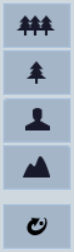
-
Rule Info: This toggle overlays the screen with active line crossing or intrusion zone rules.
D) Alerts
When the camera detects an anomaly, icons appear to the upper right of the video feed.
 The camera is recording to its SD card.
 A sensor alarm has been triggered.
 Motion has been detected.
 Abnormal color alert.
 Abnormal clarity alert.
 Abrupt scene change alert.
 Line crossing alert.
 Intrusion alert.
 Target count activated.